
How to remove the one-time purchase option for a product
Make a product subscription only with Shopify's purchase option setting, or hide the one-time purchase row on an offer.
How to Remove the One-Time Purchase Option for a Product#
Summary#
Learn how to make your products available only through subscription. There are two ways: make the product subscription only in Shopify (strict, recommended), or hide the one-time purchase row on the offer (a visual change only). This is useful for subscription boxes, memberships, rentals or recurring services where one-time purchases are not wanted.
Video walkthrough#
Method 1 in under two minutes, if you would rather watch than read.

When to Use This Guide#
Use this guide when you want to:
- Enforce recurring revenue by disabling one-time purchases.
- Offer exclusive access to products through a subscription model.
- Reduce confusion by showing only subscription options to customers.
Common use cases include:
- Subscription boxes (e.g., snacks, beauty, books)
- Membership products (e.g., digital content or communities)
- Consumables (e.g., coffee, supplements)
- Personal care items (e.g., razors, skincare)
- Ongoing services and rentals (e.g., home cleaning, coaching, equipment rental)
Method 1: Make Individual Products Subscription-Only (Recommended)#
This method disables one-time purchases for the products you choose, everywhere in your store.
Prerequisite#
The product must be in a subscription offer.
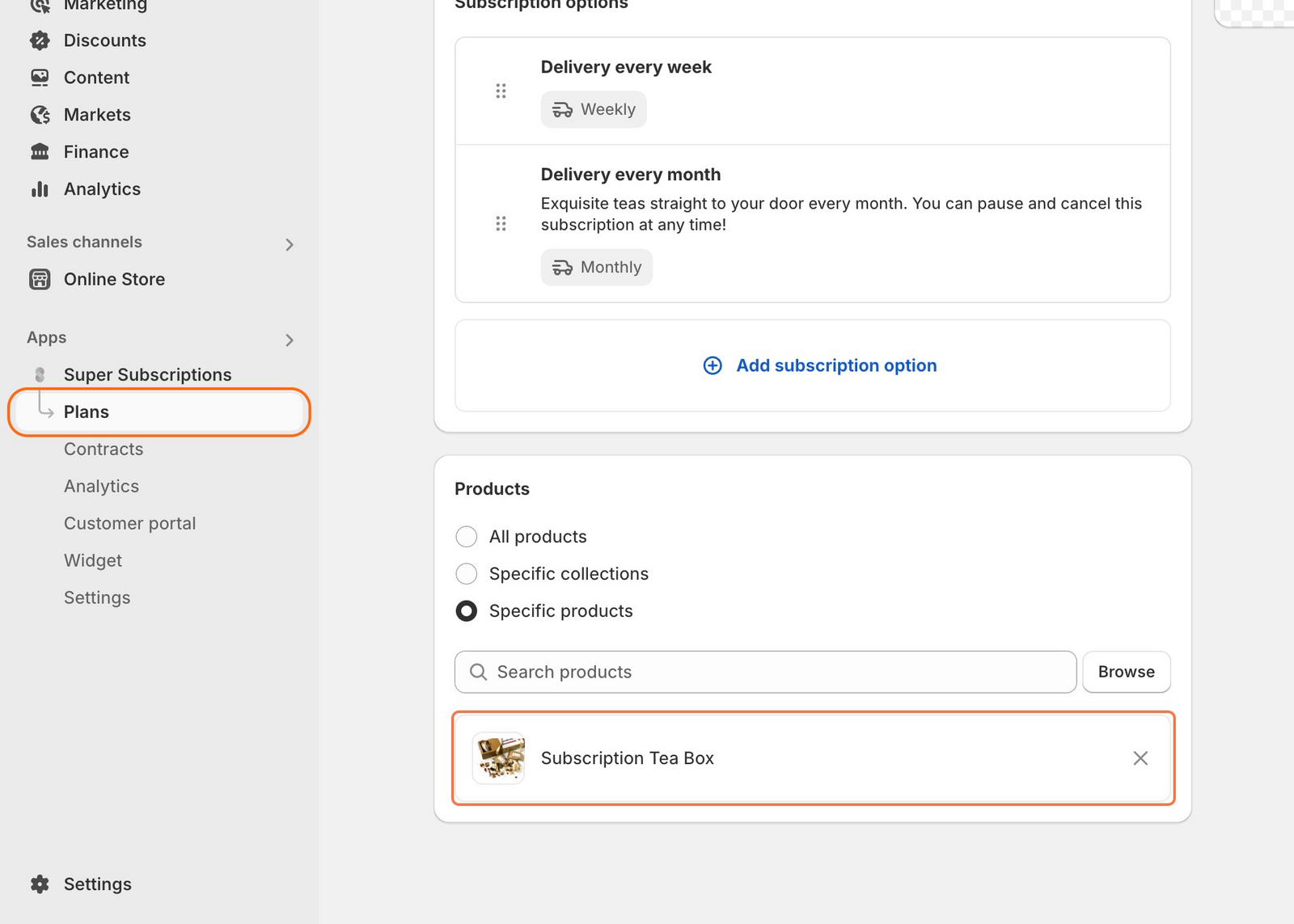
Step-by-Step Instructions#
-
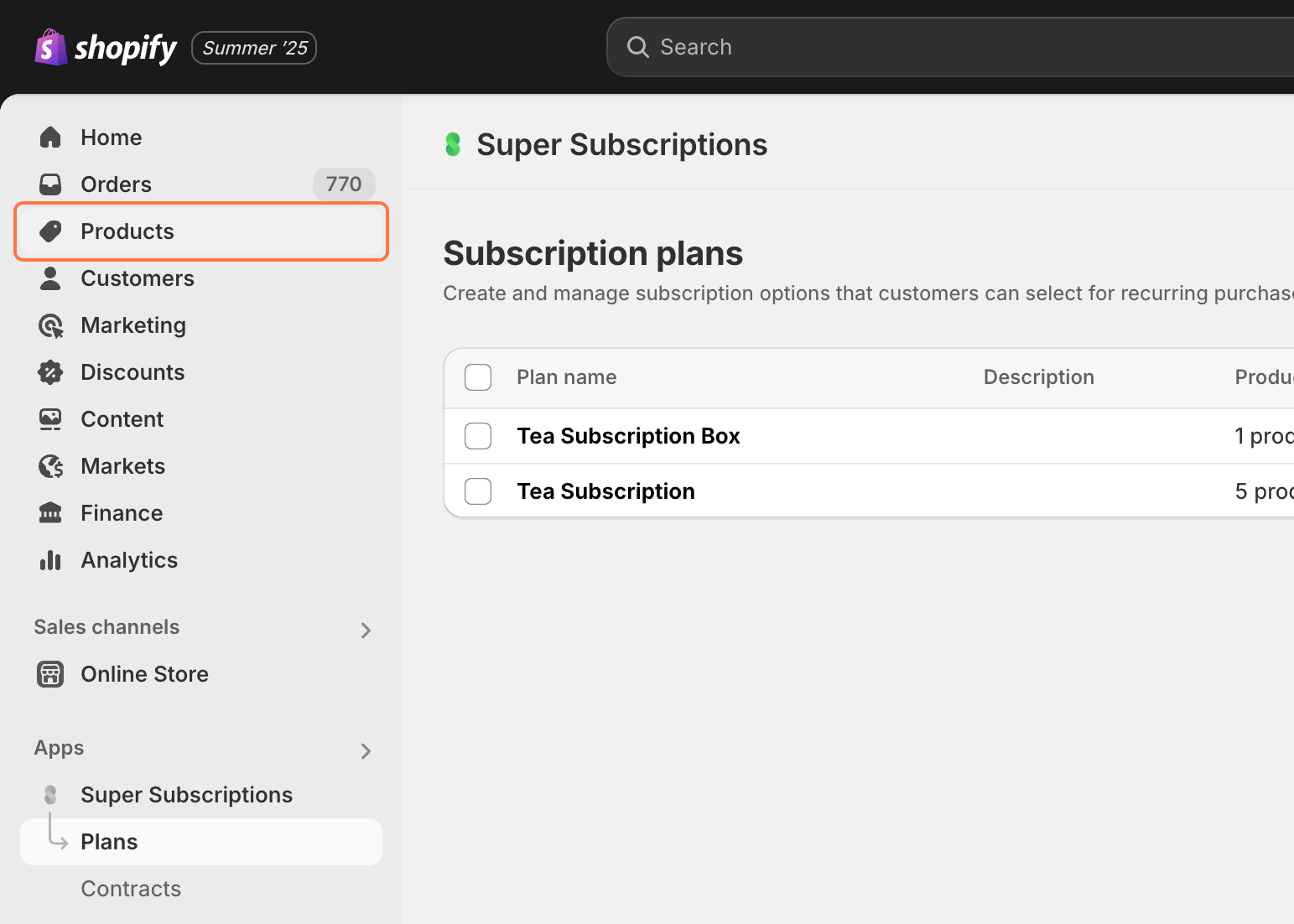
Go to the Products page in your Shopify admin.
-
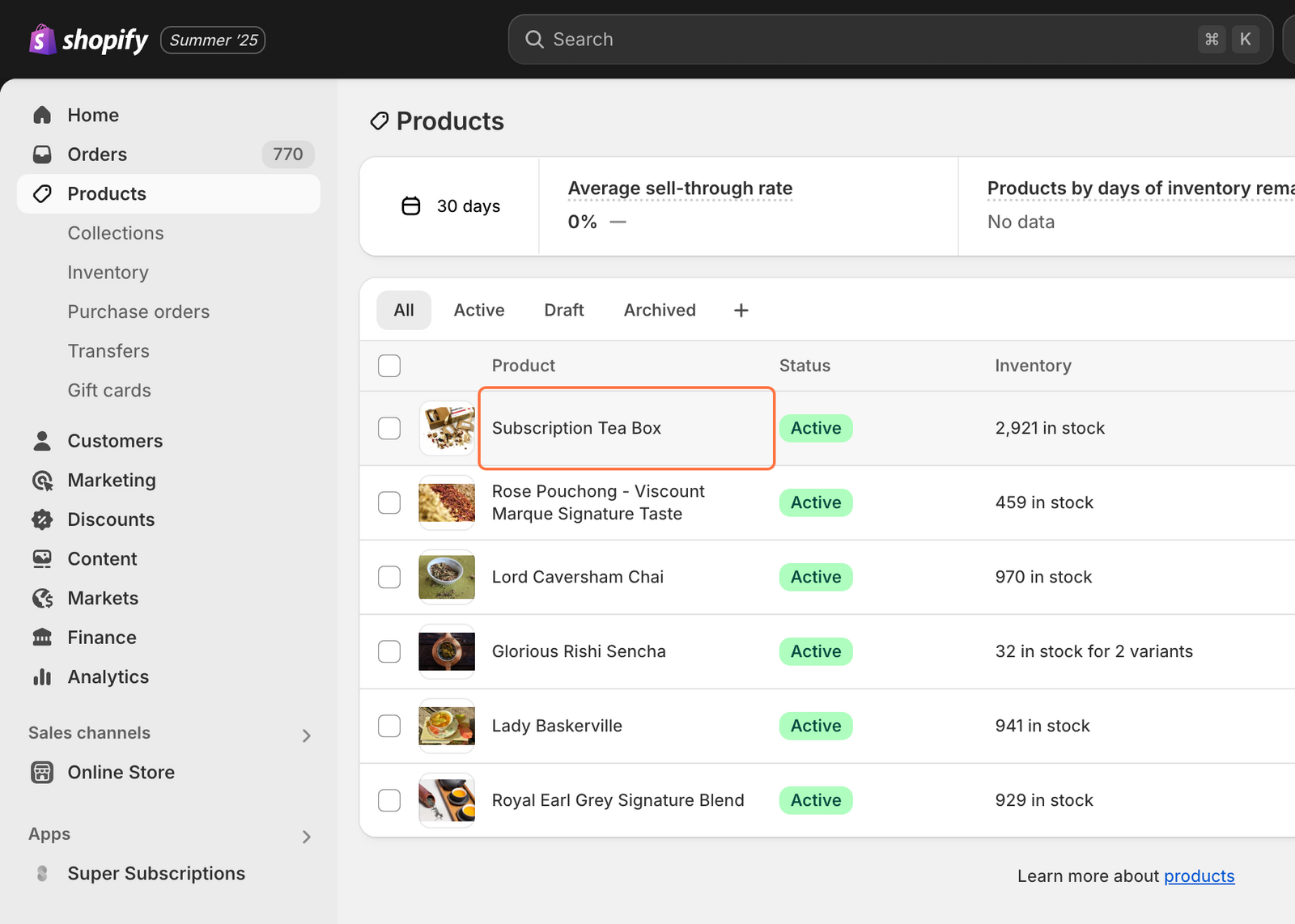
Select the product you want to modify.
-
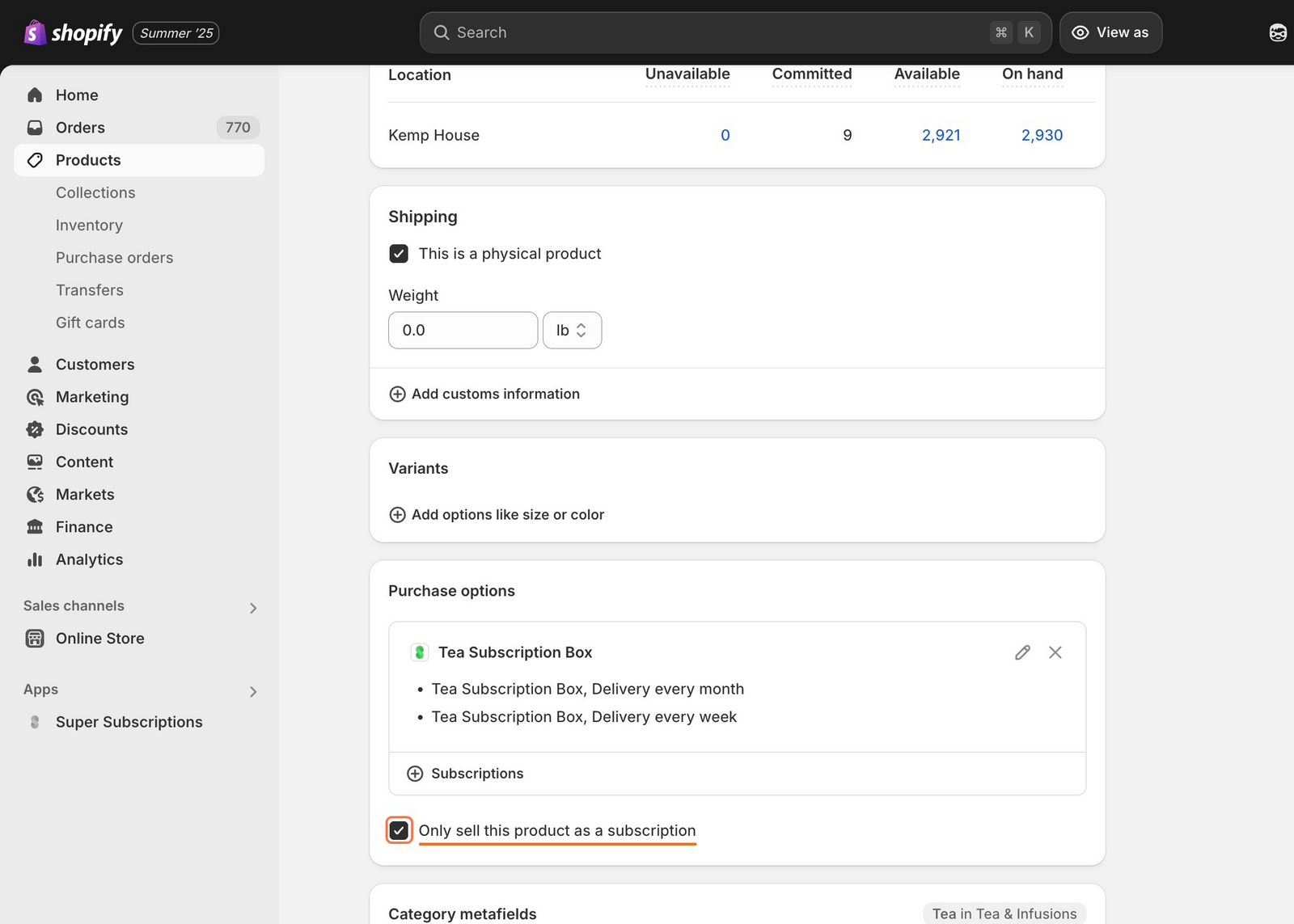
In the Purchase options section, check "Only sell this product as a subscription".
-
Click Save. 
-
Visit the product page in your online store to confirm the one-time option is gone.
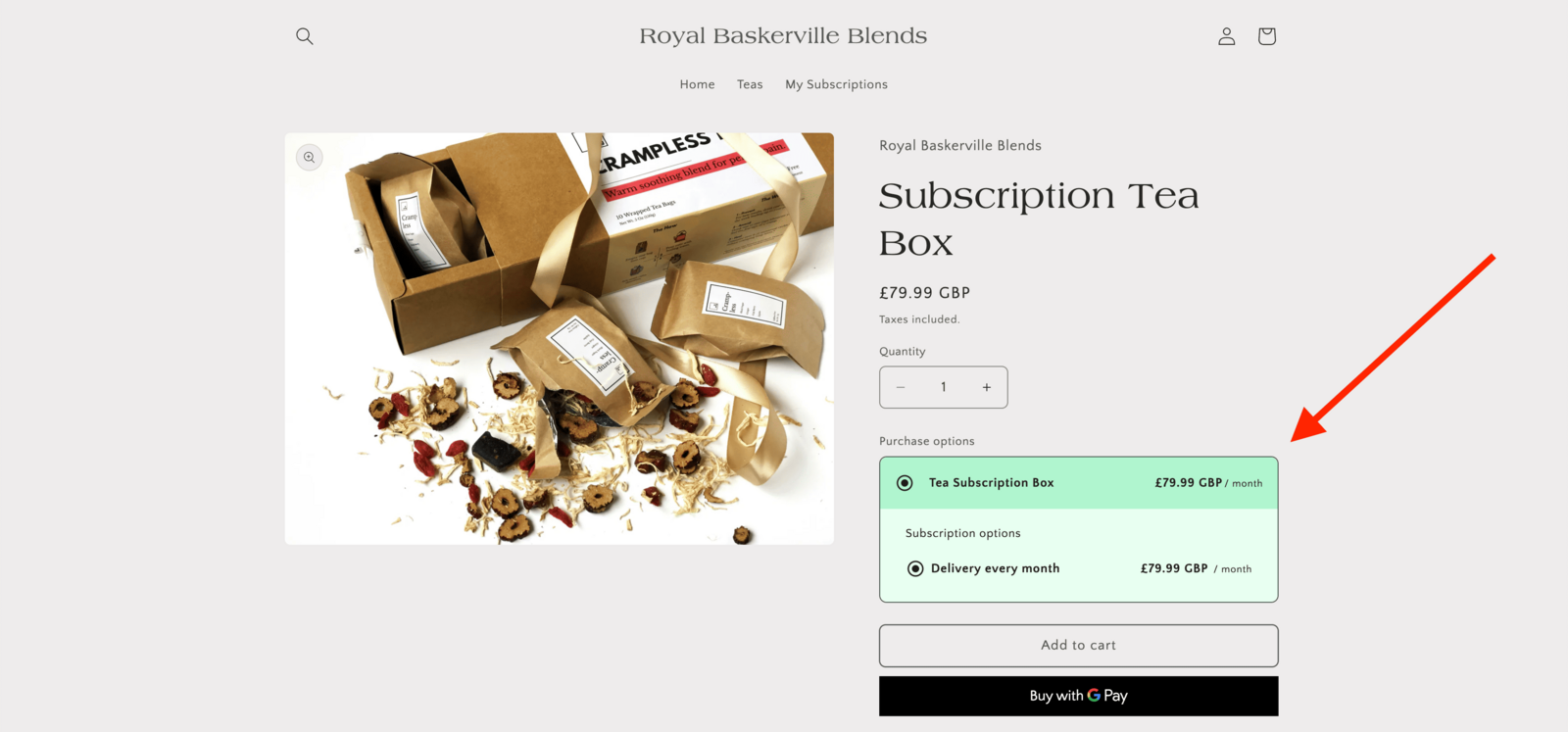
Repeat this for each product. In the offer editor, a product set this way shows a Subscription-only badge in the offer's product list.
Method 2: Hide the One-Time Purchase Row on an Offer#
This method hides the one-time purchase row in the widget for every product in one offer. It is set on each offer, not store-wide, and there is no longer a switch for it on the Design page.
Step-by-Step Instructions#
- Go to Supr Bundles & Subscriptions > Offers and open the offer.
- Find the One-time purchase row in the list of subscription options.
- Click the eye icon on the row (Hide the one-time purchase option on the storefront). The row now carries a Hidden badge.
- Click Save.
- Visit a product page from that offer in your online store to confirm the one-time option is gone.
If the one-time row was the default, the first subscription option becomes the default instead, so the widget always opens on a choice a customer can see. To bring the row back, click the eye icon again and save.
The one-time purchase row cannot be deleted, only hidden.
Troubleshooting#
- Double-check that you saved the product (Method 1) or the offer (Method 2).
- Refresh the storefront page.
- If the product is in more than one offer, hide the row on each of them, or use Method 1.
- If you hid the row but still receive one-time orders for the product, those came through a path the widget does not control. Use Method 1.
- If the one-time option shows up when you do not expect it, or is missing when you want it, see The one-time purchase option is not showing on the product page.
- Still stuck? Open the chat bubble inside the app and our support team will help.
Tips and Best Practices#
- Always check the product is in an offer when using Method 1.
- Use Method 1 when you need strict enforcement. Use Method 2 when you only want the widget to lead with the subscription, for example on one offer while keeping one-time buying elsewhere.
- If you want to keep one-time buying but lead with the subscription, you do not need either method: click Make default on a subscription option in the offer instead. See Setting the default option.
Common questions#
How do I turn off the one-time purchase option? Tick Only sell this product as a subscription on the product in Shopify (strict), or hide the One-time purchase row on the offer with its eye icon (visual only).
Can I make a whole collection subscription only? Method 2 hides the one-time row for every product in the offer, so an offer applied to that collection covers it in one step. For strict enforcement, tick the Shopify setting on each product.
I removed the one-time option but still got a one-time order. Why? Hiding the row only changes the widget. Buy it now, direct links and other sales channels can still sell the product once. Use Method 1 to block them.
Where did the "Show one-time purchase option" checkbox on the Design page go? Each offer now decides, with the eye icon on its One-time purchase row.
Related Guides#
Still need help?
Open the chat in the app and our team will take it from there.